
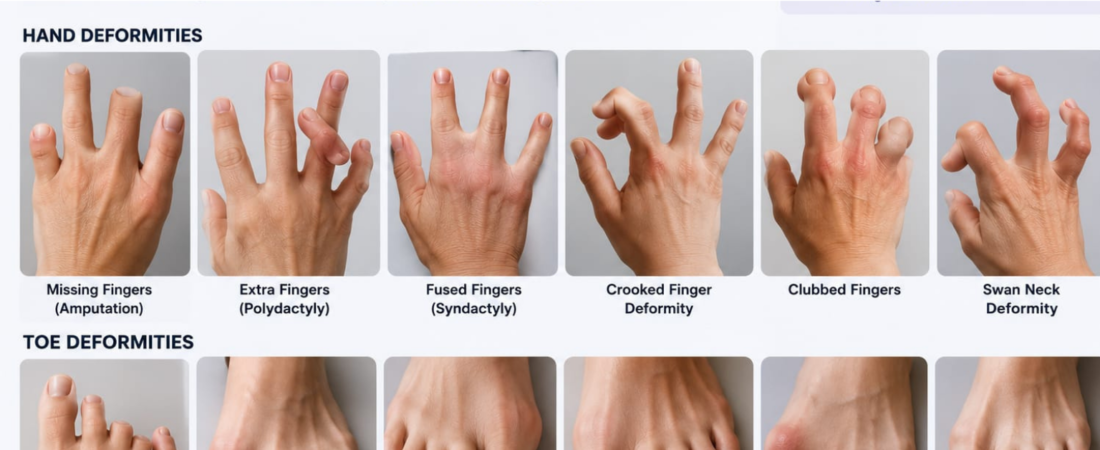
Struggling with mangled hands and extra fingers in your AI art? Learn how to fix AI image generator deformities in fingers, toes, and anomalies fast.
You finally get the perfect pose, the perfect lighting, the perfect expression and then you look down and count seven fingers on one hand. If you’ve spent any real time generating images with AI, you already know this pain. It’s such a common problem that it’s become something of a running joke in AI art communities, but when you’re trying to ship a finished piece for a client, a product listing, or your own portfolio, it’s not funny at all.
This guide covers exactly how to fix AI image generator deformities in fingers, toes, and other anomalies the causes, the quick fixes, the tools built specifically for this problem, and the workflow professionals actually use to get clean, usable hands out of AI art tools. Whether you’re working in Midjourney, Stable Diffusion, DALL-E, or another generator, the techniques below will help you go from “close enough” to genuinely publish-ready.
Why AI Image Generators Struggle With Hands, Fingers, and Toes
Before fixing the problem, it helps to understand why it happens in the first place.
AI image generators learn to draw by studying millions of photos and pairing them with text descriptions. Hands are uniquely difficult for these models because they’re small, they bend into an enormous number of possible positions, and they’re often partially hidden, blurred, or cropped in the training photos themselves. A face, by comparison, almost always appears the same way two eyes, one nose, one mouth, roughly symmetrical. A hand can be balled into a fist, spread wide, gripping an object, or half out of frame, and the model has to guess at the exact number and position of fingers every single time.
Feet and toes have a similar issue, made worse by the fact that they show up far less often in typical training data than hands or faces do. The result is the same category of mistake: extra digits, fused digits, twisted joints, or toes that trail off into a smudge.
Common types of AI-generated anomalies include:
- Extra or missing fingers
- Fused or webbed fingers
- Fingers bending at anatomically impossible angles
- Extra or missing toes
- Hands that blur or melt into nearby objects
- Mismatched hand size relative to the rest of the body
- Jewelry or nails that duplicate or distort
Knowing which category your image falls into helps you pick the right fix, which is exactly what the next few sections walk through.
Quick Prompt Fixes to Try First
Before reaching for editing software, it’s worth trying to fix the problem at the source, since a better prompt is often the fastest fix of all.
Be More Specific About Hand Position and Count
Vague prompts give the model more room to guess wrong. Instead of just describing a person, describe what their hands are doing and how many fingers should be visible. For example, specifying “hands resting flat on the table, five fingers visible on each hand” gives the model a much clearer target than leaving hand position undescribed.
Use Higher-Quality Modifiers
Adding quality-focused terms to your prompt — phrases like “detailed hands,” “anatomically correct,” or “high-resolution photography” nudges many models toward cleaner outputs, since these phrases are statistically associated with better-quality training images.
Simplify the Pose
The more complex the hand pose, the more likely the model is to get it wrong. A hand casually resting on a hip or holding a simple object generates far more reliably than a hand mid-gesture with fingers interlaced or overlapping.
Regenerate Instead of Settling
This sounds obvious, but it’s the most underused fix. Most generators produce a different result every time, even with an identical prompt. If a hand comes out wrong, regenerating the same prompt two or three times often solves the problem without any extra work at all.
Fixing Finger and Toe Deformities With Inpainting
When prompting alone doesn’t solve it, inpainting is the next step and it’s the technique most professional AI artists rely on for hands specifically.
Inpainting lets you select just the problem area of an image say, the left hand and regenerate only that region while keeping everything else untouched. Most major tools now support this directly:
- Stable Diffusion (via Automatic1111, ComfyUI, or similar interfaces) has a dedicated inpainting mode where you mask the hand, set a focused prompt like “detailed human hand, five fingers,” and regenerate just that section, often at a higher resolution than the rest of the image.
- Midjourney offers a “Vary (Region)” tool that works the same way you draw a box around the bad hand and let the model try again in that specific area.
- DALL-E (through ChatGPT’s image tools) supports select-and-edit, letting you brush over the deformed area and describe what should replace it.
The advantage of inpainting over regenerating the whole image is that you keep everything that already looks good the face, the background, the lighting — and only reroll the part that’s broken. It usually takes two or three attempts on the masked region before the hand resolves into something anatomically correct.
A Simple Inpainting Workflow
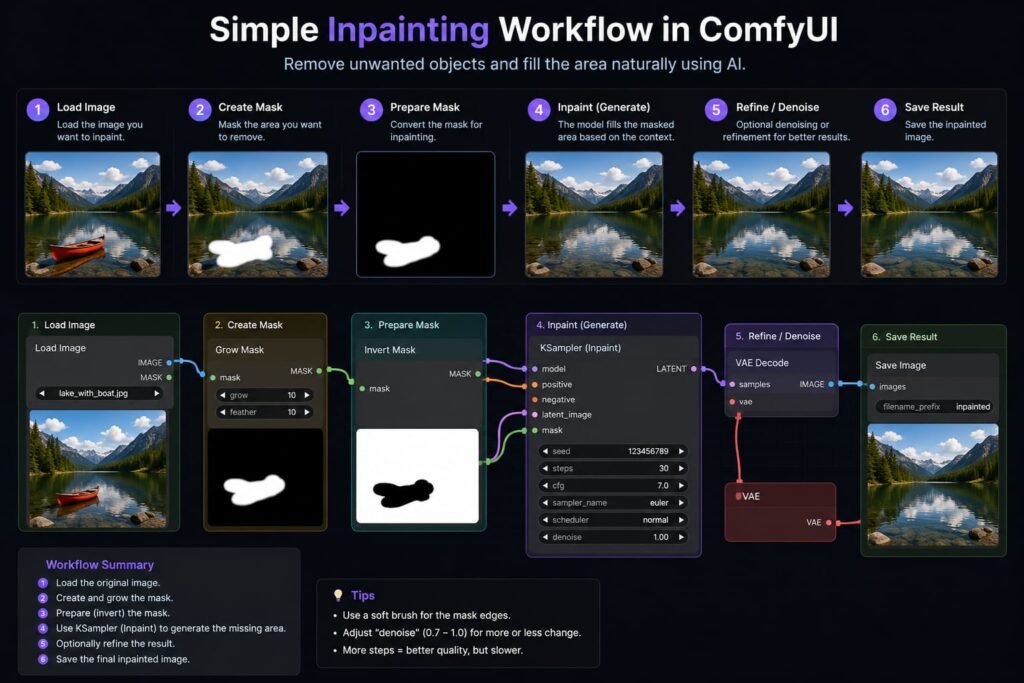
- Zoom into the deformed hand or foot and mask just that region.
- Write a short, focused prompt describing the correct anatomy finger count, position, and any visible detail like nails or rings.
- Set the inpainting strength moderately high, so the model has room to fully redraw the area rather than just softening the existing errors.
- Generate several variations and pick the cleanest one.
- Blend the edges if needed, so the fixed region matches the lighting and texture of the rest of the image.
Using Negative Prompts to Prevent Anomalies
Negative prompting — telling the model what to avoid is one of the most effective preventative tools, especially in Stable Diffusion-based generators.
A well-built negative prompt for hands typically includes terms like: extra fingers, missing fingers, fused fingers, mutated hands, poorly drawn hands, deformed, extra limbs, disfigured. Many artists keep a saved negative prompt template specifically for hand-heavy images and reuse it across projects instead of retyping it every time.
Midjourney and DALL-E don’t support negative prompts in quite the same explicit way, but Midjourney does support a --no parameter that works similarly, letting you exclude specific features from the output.
Featured snippet answer: To reduce AI-generated hand deformities, use a negative prompt listing terms like “extra fingers, fused fingers, deformed hands, mutated hands” alongside your main prompt, or use your generator’s exclusion parameter if negative prompts aren’t directly supported.
Tools and Extensions Built Specifically for Hand Fixes
Beyond manual inpainting, a few tools exist specifically to solve this problem automatically.
- ADetailer (Stable Diffusion extension) automatically detects faces and hands in a generated image and reruns inpainting on them using a specialized detection model, without you having to manually mask anything. It’s become close to a standard tool for anyone doing repeated character generation in Stable Diffusion.
- Hand-specific LoRAs and fine-tuned models exist that are trained specifically on clean, well-lit hand photography, and blending one of these into your generation pipeline measurably improves hand accuracy.
- ControlNet with an OpenPose or depth hand model lets you feed the generator a reference hand pose — either from a stock photo or a simple 3D hand model — so it has an actual structural guide to follow instead of guessing.
If you’re generating a high volume of images that consistently include hands — product photography, character art, social content — investing the time to set up one of these tools once will save far more time than manually inpainting every single image.
Post-Processing Fixes in Photoshop or GIMP
Sometimes the fastest fix isn’t AI at all it’s a five-minute manual touch-up in standard photo editing software.
For a mildly wrong finger count or a slightly bent digit, the Liquify tool in Photoshop (or the equivalent warp tools in GIMP or Photopea, a free browser-based alternative) can reshape a finger without needing to regenerate anything. The Clone Stamp and Healing Brush tools are useful for removing an obviously extra finger by cloning skin texture from a clean part of the hand over the mistake.
This approach works best for small anomalies — an extra fingertip, a slightly warped nail rather than a hand that’s fundamentally wrong in structure. For anything more severe, inpainting through the AI tool itself will get you a cleaner result faster than trying to manually redraw anatomy.
Platform-Specific Tips for Fixing AI-Generated Anomalies
Different tools have different strengths when it comes to correcting deformities, so it’s worth knowing where each one shines.
Midjourney
Use the Vary (Region) feature for targeted fixes, and lean on the --no parameter to exclude common failure terms. Midjourney’s later model versions have also improved hand accuracy substantially compared to earlier versions, so simply regenerating with the newest model version can solve problems that used to require heavy editing.
Stable Diffusion
This is the most flexible option for fixing deformities, thanks to open-source tools like ADetailer, ControlNet, and a wide library of community-trained hand models. It takes more setup than Midjourney or DALL-E, but it gives you the most granular control.
DALL-E / ChatGPT Image Tools
Use the built-in select-and-edit feature to mask and redraw specific regions, and be as descriptive as possible about hand position and finger count in your edit prompt, since the tool relies heavily on your written description to guide the fix.
Frequently Asked Questions
Why do AI image generators mess up fingers and toes so often?
Hands and feet bend into far more possible positions than faces do, and they’re less consistently represented in the photos these models learn from. That combination makes it harder for the AI to reliably predict the correct number and position of digits.
What’s the fastest way to fix a deformed hand in an AI image?
Regenerating the image two or three times often fixes it with zero extra effort, since most generators produce a different result each time. If that doesn’t work, inpainting just the hand region is the next fastest and most reliable fix.
Do negative prompts actually help with finger deformities?
Yes. Adding terms like “extra fingers, fused fingers, deformed hands” to a negative prompt measurably reduces the frequency of these errors in Stable Diffusion-based tools, and Midjourney’s --no parameter serves a similar function.
Is there a tool that fixes hands automatically?
ADetailer, a popular Stable Diffusion extension, automatically detects and re-generates hands and faces without manual masking. It’s the closest thing to a one-click fix currently available.
Can I fix AI hand deformities without any technical skills?
Yes. Simply regenerating the image, using a platform’s built-in region-editing tool (like Midjourney’s Vary Region or DALL-E’s select-and-edit), or making small manual touch-ups in a free tool like Photopea all require no coding or technical background.
My Final Thoughts: Is Ai Hand Deformity Fixing Worth It?
Deformed hands and mismatched fingers used to be one of the clearest giveaways of AI-generated art, but they’re increasingly a solvable problem rather than a permanent limitation. Between smarter prompting, inpainting, negative prompts, and dedicated tools like ADetailer and ControlNet, you now have a genuine workflow for turning a flawed generation into something clean and usable no advanced editing skills required.
Start simple: tighten your prompt, add a negative prompt for common hand errors, and regenerate before you do anything else. If the problem persists, move on to inpainting or an automated tool built for the job. With a bit of practice, fixing AI image generator deformities in fingers, toes, and other anomalies becomes a quick, repeatable step in your workflow rather than a frustrating dead end — and you’ll spend a lot less time discarding otherwise-perfect images over one bad hand.
Techniques and tool names referenced here are current as of 2026; AI image generators update frequently, so check each platform’s latest documentation for any new built-in fixing tools.