
Gemini image to video explained: how to turn photos into AI videos, which plan you need, real pricing, and tips for better results in 2026.
Upload a still photo, describe what should happen next, and watch it turn into an eight-second video with sound that’s the entire premise behind Gemini’s image-to-video feature, and it’s genuinely one of the more satisfying “wait, that actually worked” moments in consumer AI right now. Google built it directly into the Gemini app on top of its Veo video model, and it’s grown fast enough that tens of millions of clips have already been generated across Gemini and its sister tool, Flow.
This guide covers everything you need to actually use Gemini image to video well: how the feature works, exactly which subscription plan unlocks it, what it really costs once you factor in credits, how it compares to Google’s dedicated Flow filmmaking tool, and the prompting habits that separate a flat, awkward animation from something genuinely convincing. By the end, you’ll know exactly how to turn your own photos into video and what to realistically expect when you do.
What Is Gemini Image to Video? A Quick Answer
Gemini image to video is a feature built into Google’s Gemini app that transforms a still photo into an eight-second AI-generated video with synchronized audio, powered by Google’s Veo model family. You upload an image, describe the scene and any sound you want, and Gemini animates the photo into a moving clip you can download or share.
The feature first rolled out in July 2025 alongside Veo 3, adding native audio generation and photo-to-video capability to what had previously been a text-only video generation tool. It’s available to Google AI Pro and Ultra subscribers, and the same underlying capability also powers Flow, Google’s dedicated AI filmmaking tool, giving you two different interfaces for essentially the same core technology depending on how much control you want over the process.
How Gemini’s Image-to-Video Feature Actually Works
Under the hood, Gemini’s image-to-video tool uses your uploaded photo as the starting frame of the generated video, then applies Google’s Veo model to animate it based on your text description adding camera movement, subject motion, environmental effects, and now, audio, all generated to match what you described.
This is a meaningfully different process than simply applying a filter or effect to an existing photo. The model is generating genuinely new video content frame by frame, using your image as an anchor point for what the first moment of that video should look like, then extrapolating outward based on your prompt.
Gemini Omni Flash vs. Veo 3.1
Google currently offers two different model paths for this kind of generation. Gemini Omni Flash is positioned as a fast, multimodal model built for quickly turning text prompts and images into short videos, with support for conversational, multi-turn editing meaning you can refine a generated video across several exchanges rather than starting over each time. Veo 3.1, by contrast, is Google’s more dedicated video generation model, supporting native audio, video extension, frame-specific generation, and more precise image-based direction. Which one you’re using inside the Gemini app depends on your specific workflow and settings, though both are built around the same underlying image-to-video concept.
Step-by-Step: How to Turn an Image Into a Video in Gemini
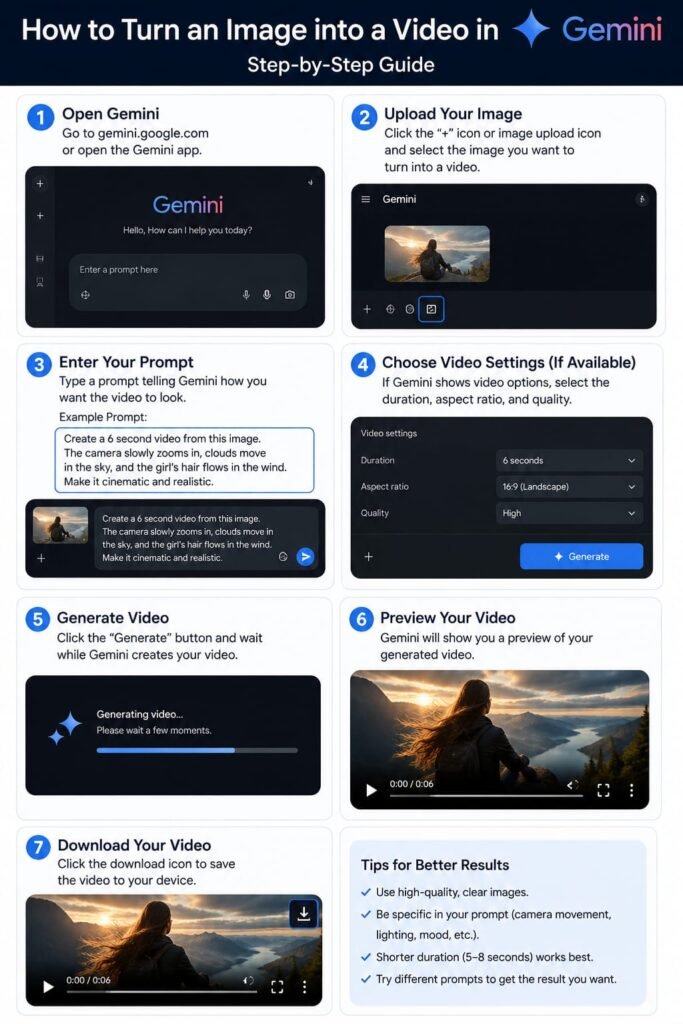
To generate a video from an image in Gemini, select “Videos” from the tool menu in the prompt box, upload your photo, describe the scene and motion you want along with any audio instructions, and submit — Gemini will generate an eight-second video clip you can preview, download, or share directly from the app.
Step 1: Open the Tool Menu
Inside the Gemini app or on the Gemini website, open the prompt box and select “Videos” from the available tool options — this switches Gemini into video generation mode rather than a standard text response.
Step 2: Upload Your Image
Add the photo you want to animate. This can be a personal photo, a drawing, a painting, or any still image you have the rights to use — Gemini uses it as the visual starting point for the generated clip.
Step 3: Describe the Scene and Motion
Write a description of what should happen in the video — camera movement, subject action, environmental changes, mood, and style. The more specific and detailed your description, the more control you have over the final result.
Step 4: Add Audio Instructions
Since Gemini’s image-to-video feature generates native audio alongside the visuals, include any sound direction you want dialogue, ambient noise, music style, or specific sound effects — directly in your prompt.
Step 5: Generate, Review, and Download
Submit your prompt and let Gemini generate the eight-second clip. Once it’s ready, you can preview it, use thumbs up or down to give Google feedback for improving the model, and download or share the finished video directly.
Which Gemini Plan Do You Need for Image to Video?
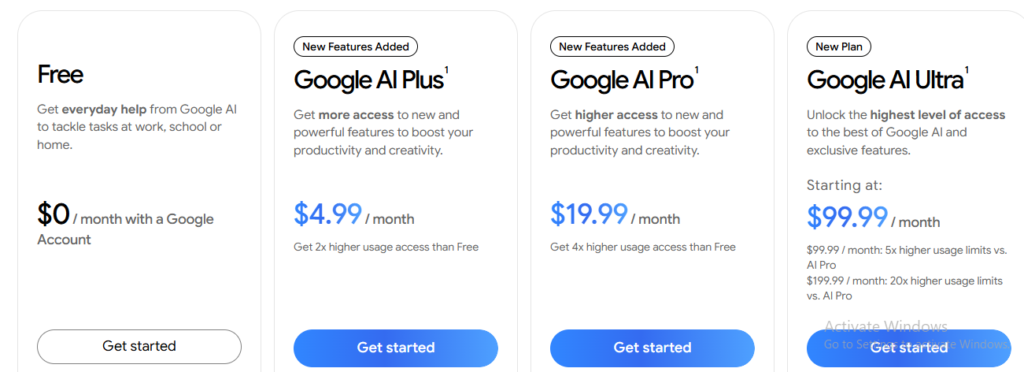
Gemini’s image-to-video feature is not available on the free Gemini plan. It requires at least a Google AI Pro subscription ($19.99/month), which includes a monthly Flow credit allowance for video generation, with Google AI Ultra ($99.99/month or $199.99/month) offering significantly higher credit limits and access to Veo’s top-quality model tier.
Free Tier: Not Included
Gemini’s free tier gives you general chat and search capability, but Veo-powered video generatio including image-to-video isn’t part of the free plan. If you’ve tried uploading a photo and requesting a video on a free Gemini account and hit a wall, that’s expected behavior, not a bug.
Google AI Pro: The Entry Point
Google AI Pro, at $19.99/month, is the minimum tier that unlocks image-to-video generation, including a monthly allowance of Flow credits (commonly cited around 1,000) that gets consumed as you generate clips. It’s worth noting that college students have, at various points, been offered a full year of AI Pro for free through Google’s promotional programs — worth checking current eligibility if you’re a student.
Google AI Ultra: For Heavier Use
Google AI Ultra, priced at $99.99/month or $199.99/month for the higher tier (a meaningful cut from Ultra’s earlier $249.99/month pricing), provides a substantially larger credit allowance along with access to Veo’s highest-quality generation tier, better suited to anyone generating video regularly rather than occasionally.
Gemini Image to Video Pricing and Credits Explained
This is the part that catches a lot of new users off guard: the subscription price alone doesn’t tell you how many videos you can actually generate, because Gemini’s video generation runs on a credit system layered on top of your plan.
How Flow Credits Work
Each video generation consumes a number of credits based on which Veo quality tier you use. Veo 3.1 Lite, the cheapest and fastest option, typically costs around 5-10 credits per generation and is best suited to drafts and rapid iteration. Veo 3.1 Fast sits in the middle, at roughly 10-20 credits, offering better practical output for content you actually intend to publish. Veo 3.1 Quality, the highest tier, can cost around 100 credits per generation and is best reserved for final, polished shots rather than routine use.
On Google AI Pro’s 1,000 monthly Flow credits, that works out to roughly 100 videos using Veo 3.1 Lite, around 50 videos using Veo 3.1 Fast, or as few as 10 videos using Veo 3.1 Quality — meaning your real monthly video output depends heavily on which quality tier you choose, not just your subscription price.
Every Generation Maxes Out at 8 Seconds
It’s worth planning around a hard technical limit: each Veo generation produces a maximum of eight seconds of video. If you need a longer clip, you’ll need multiple generations a 9-second video, for instance, actually requires two separate 8-second generations, effectively doubling your credit cost for that extra second. Planning your content around this 8-second chunk size from the start avoids unnecessary waste.
API Pricing for Developers
For developers building on Gemini or Veo programmatically through the Gemini API or Vertex AI, pricing runs on a pay-per-second basis rather than a subscription and credit system — generally cited in the range of $0.03-$0.05 per second for Veo 3.1 Lite, $0.10-$0.15 per second for Fast, and $0.20-$0.40 per second for Quality. Google’s documentation has also indicated that older Veo 2 and Veo 3 API endpoints were scheduled to shut down by June 30, 2026, meaning new integrations should be built directly against Veo 3.1 rather than legacy model names.
Veo 3.1: The Model Powering Gemini’s Video Generation
Veo 3.1 is Google’s current flagship video generation model, and understanding its core capabilities helps explain what Gemini’s image-to-video feature can and can’t do. Beyond basic image-to-video generation, Veo 3.1 supports video extension (lengthening an existing clip), frame-specific generation (controlling exact moments within a generation), and more precise image-based direction than earlier versions offered.
On Google’s enterprise platform specifically, Veo also supports reference-image-guided generation letting you provide up to three images of a single subject to preserve their appearance across a generation, or a single style-reference image to apply a specific artistic look to your output. These more advanced reference capabilities are more commonly available through Google Cloud’s enterprise tools than the consumer Gemini app, but they represent the same underlying model family consumer users are tapping into at a lighter level.
Image to Video in Flow: Google’s Dedicated Filmmaking Tool
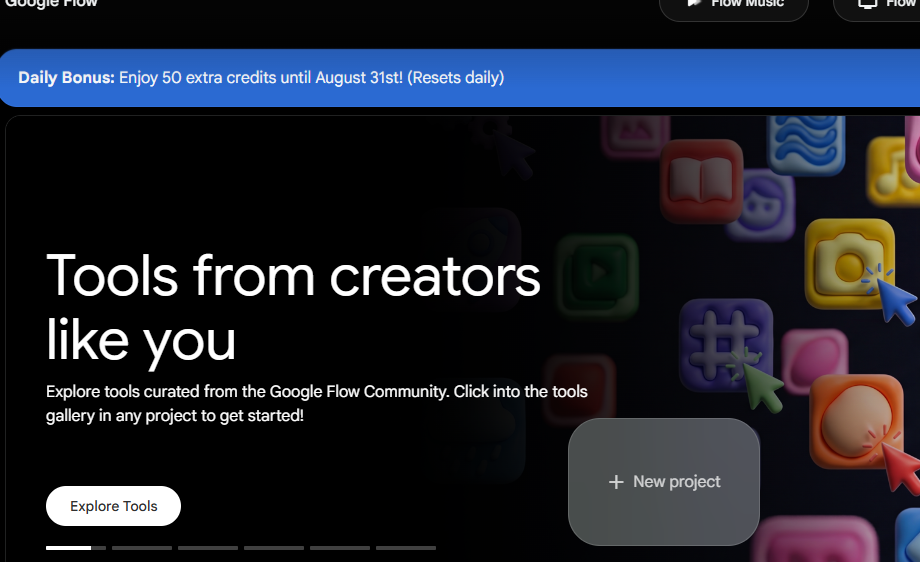
Flow is Google’s standalone AI filmmaking tool, and it uses the same core Veo technology as Gemini’s image-to-video feature but with a workflow built specifically around video creation rather than general-purpose chat. If you’re doing more serious or sustained creative video work, Flow’s dedicated interface often makes more sense than working through Gemini’s general prompt box.
When to use Gemini’s built-in feature versus Flow: Gemini’s image-to-video tool is the faster, more casual option — ideal when video generation is one part of a broader conversation or task. Flow is the better choice when video creation is your primary goal and you want a purpose-built environment for iterating on shots, managing credits, and organizing a larger creative project.
Both draw from the same underlying Flow credit pool tied to your Google AI Pro or Ultra subscription, so switching between them doesn’t create a separate cost — it’s simply a different interface for the same capability.
Tips for Writing Effective Image-to-Video Prompts in Gemini
Getting a genuinely good result from Gemini’s image-to-video feature comes down to how well you describe what you want, since the model is extrapolating an entire moving scene from a single starting image and your written direction.
Be Specific About Motion
Rather than a vague instruction like “make it move,” describe the specific motion you want a slow camera pan, a character turning their head, wind moving through hair or fabric. Specific, concrete motion descriptions consistently produce more convincing results than general ones.
Include Camera Direction
Describing the camera’s behavior — a slow zoom, a static shot, a gentle pan gives Gemini a clearer structural framework for the generated video, rather than leaving that decision entirely up to the model’s own interpretation.
Add Audio Direction Deliberately
Since native audio is part of the generation, don’t skip this part of your prompt. Describe ambient sound, dialogue, music style, or specific effects you want synchronized with the visual action, rather than leaving audio as an afterthought.
Start With Simple Scenes Before Attempting Complex Ones
Simpler subjects and motions — a single subject with one clear action tend to generate more reliably than crowded scenes with multiple moving elements. Build confidence and understanding of the tool’s behavior on simple prompts before attempting more ambitious, multi-element scenes.
Iterate Rather Than Expecting Perfection First Try
Treat your first generation as a draft. Using Veo 3.1 Lite for early iterations, then moving to Fast or Quality once you’ve refined your prompt, is both a better creative process and a more credit-efficient one than generating your final version repeatedly at the highest quality tier.
Gemini Image to Video Limitations and Watermarking
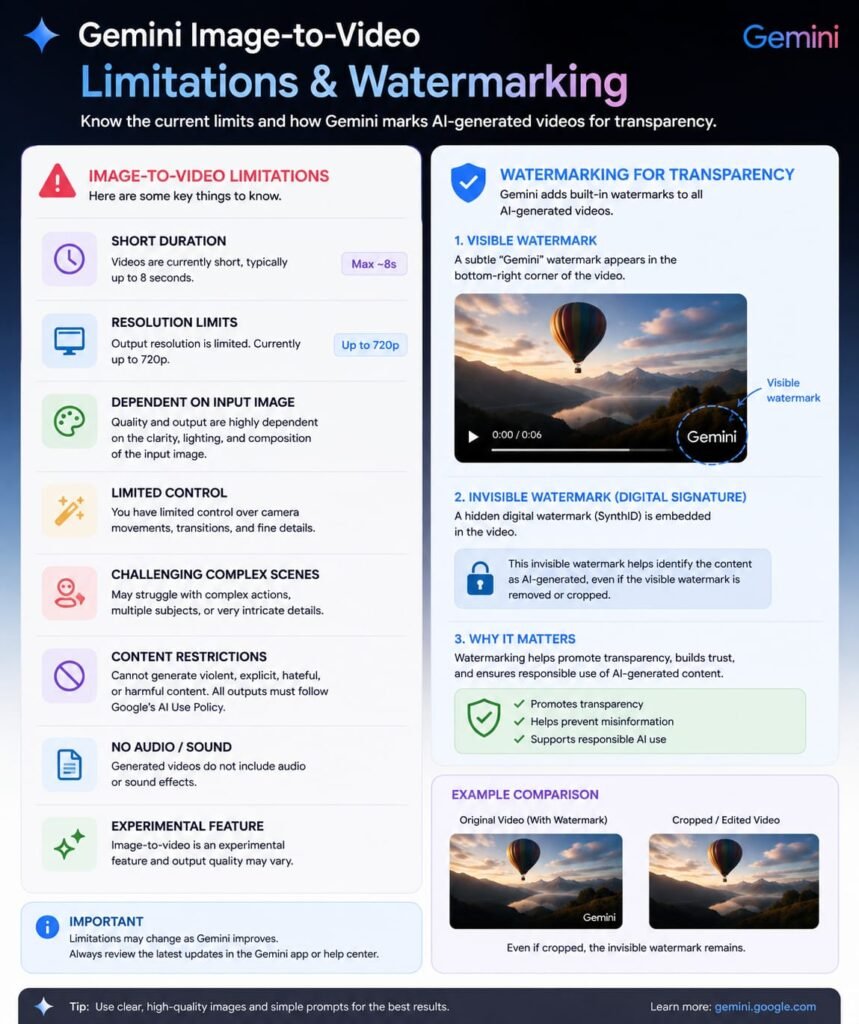
Every video generated through Gemini’s image-to-video feature includes a visible watermark identifying it as AI-generated, along with an invisible SynthID digital watermark embedded in the file a transparency measure Google applies to all Veo-generated content, regardless of subscription tier.
Beyond watermarking, there are a few practical limitations worth planning around. Each generation is capped at eight seconds, requiring multiple generations (and proportionally more credits) for anything longer. Access is currently limited to Google AI Pro and Ultra subscribers in select countries, meaning free-tier users and some regions may not have access yet. And like any AI video model, results can vary in quality a technically successful generation isn’t always a usable one, so it’s realistic to expect several attempts before landing on a result you’re happy with, particularly for more complex or ambitious scenes.
Gemini vs. Other Image-to-Video Tools: How Does It Compare?
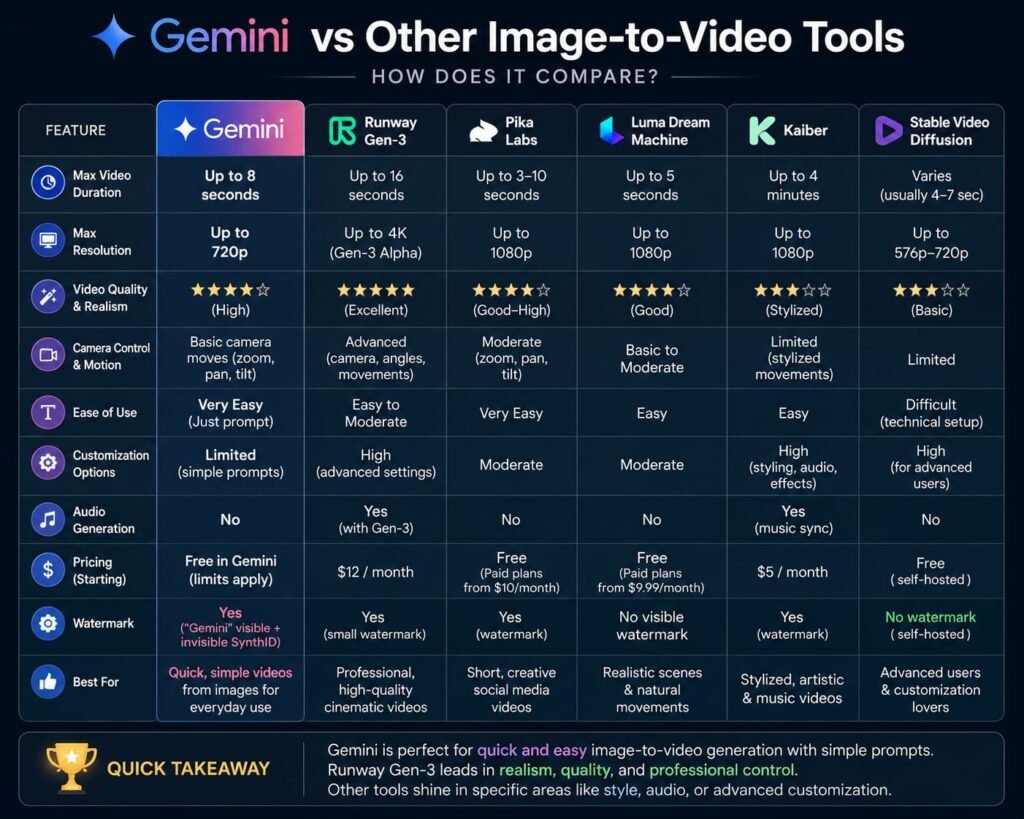
Gemini’s image-to-video feature competes in an increasingly crowded field, and it’s worth knowing where it stands relative to other major options.
Gemini/Veo vs. Kling AI: Kling offers a genuinely generous free tier with ongoing daily credits, while Gemini’s image-to-video feature requires at least a paid Google AI Pro subscription Kling is the better starting point if cost is your primary concern, while Gemini benefits from tight integration with the broader Google ecosystem (Photos, Docs, and other Google AI features) in one subscription.
Gemini/Veo vs. Runway: Runway offers a limited free tier and has built a strong reputation specifically among more professional creative users; Gemini’s advantage is its native audio generation bundled directly into the same generation, rather than a separate step.
Gemini/Veo vs. Seedance: ByteDance’s Seedance offers free credit access through consumer apps like Dreamina and CapCut and leans heavily into multimodal reference inputs; Gemini’s strength by comparison is its deep integration into a tool many people already use daily for chat and search, lowering the barrier to trying video generation at all.
The overall pattern: Gemini’s image-to-video feature isn’t necessarily the cheapest or most feature-rich option in isolation, but its integration into an app most users already have open regularly, combined with native audio generation, makes it a genuinely convenient entry point — particularly if you’re already paying for Google AI Pro or Ultra for other reasons.
Common Use Cases for Gemini Image to Video
Beyond pure novelty, Gemini’s image-to-video feature has found real, practical use across a range of everyday and creative applications:
- Bringing old or nostalgic photos to life — animating a family photo or childhood picture into a short, moving clip
- Turning drawings and paintings into motion — a genuinely popular use case, letting illustrators and hobbyists see static artwork move
- Adding movement to nature and product photography — subtle environmental motion (wind, water, light changes) added to an otherwise still shot
- Social media content creation — quick, shareable short-form video content generated from existing photos without a camera or filming setup
- Creative experimentation and storytelling — using a sequence of generated clips to build out a short narrative or concept piece
Frequently Asked Questions
How do I turn an image into a video in Gemini?
Select “Videos” from the tool menu in Gemini’s prompt box, upload your image, describe the scene, motion, and any audio you want, then submit — Gemini generates an eight-second video clip you can preview and download.
Is Gemini’s image-to-video feature free?
No. It requires at least a Google AI Pro subscription ($19.99/month), which includes a monthly Flow credit allowance. The free Gemini tier does not include Veo-powered video generation.
How long can Gemini-generated videos be?
Each generation produces a maximum of eight seconds of video. Longer videos require multiple generations, which proportionally increases the credit cost.
Does Gemini’s image-to-video feature include sound?
Yes. Since the July 2025 update introducing Veo 3, Gemini generates native, synchronized audio alongside the video worth including specific audio direction in your prompt for the best results.
What’s the difference between using Gemini and using Flow for image to video?
Both use the same underlying Veo technology and draw from the same credit pool. Gemini’s built-in feature is faster and more casual, accessed through the general chat interface; Flow is a dedicated filmmaking tool better suited to sustained, focused video creation projects.
How many videos can I generate on Google AI Pro?
With 1,000 monthly Flow credits, you can generate roughly 100 videos using the cheapest Veo 3.1 Lite tier, around 50 using Fast, or as few as 10 using the highest-quality Quality tier your real output depends heavily on which quality level you choose.
Do Gemini-generated videos have a watermark?
Yes. Every video includes a visible watermark identifying it as AI-generated, plus an invisible SynthID digital watermark embedded in the file, regardless of your subscription tier.
Can I use my own photos, or only AI-generated images?
You can use your own personal photos, drawings, paintings, or any still image you have the rights to use as the starting point for a Gemini-generated video.
My Final Thoughts: Getting Started With Gemini Image to Video in 2026
Gemini’s image-to-video feature is one of the more accessible entry points into AI video generation available right now, mainly because it’s built directly into an app many people already use daily rather than requiring a separate specialized tool. Once you understand the credit system underneath — and specifically that not all Veo quality tiers cost the same it becomes much easier to plan your usage around Google AI Pro’s monthly allowance rather than being surprised by how quickly credits disappear.
The best way to get a feel for it is simply to try it: pick a photo you’re genuinely curious to see animated, write a specific, detailed prompt describing the motion and sound you want, and start with Veo 3.1 Lite to iterate cheaply before committing credits to a higher-quality final version. A few rounds of hands-on experimentation will teach you more about what works than any single guide including this one.
If you’re exploring more AI-powered video generation tools beyond Gemini, you can also check out our detailed guides on the Sora 2 AI Video Generator, which offers advanced text-to-video and cinematic generation capabilities, Seedance 2.5, known for creating dynamic and visually impressive AI videos, Happy Horse 1.1 AI Video Model, another interesting option for AI-powered video creation and experimentation, and Kling 3.0, a powerful video generation model designed for producing realistic motion and high-quality visuals. Comparing these tools with Gemini can help you understand their differences in video quality, motion consistency, creative controls, generation speed, and overall usability, making it easier to choose the right AI video generator for your specific needs.
Related Reads:
What Is Lovable AI? The Complete Guide to the AI App Builder Everyone’s Talking About
Is Lovable AI Free? Here’s What You Actually Get
Claude Pro vs ChatGPT Plus: The Real Difference Between These $20 AI Plans
How to Fix AI Image Generator Deformities in Fingers, Toes, and Other Anomalies
What Is Meta AI Muse Spark? The Complete 2026 Guide to Meta’s Flagship AI Model
Kimi K3 Explained: Inside Moonshot AI’s Record-Breaking Open Mode
Best AI App Builder in 2026: 10 Top Tools to Build an App Without Coding
Seedance 2: Inside ByteDance’s Most Realistic AI Video Model Yet (2026)
Is Kling 3.0 Unlimited? The Honest Truth About Free Credits, Paid Plans, and Hidden Costs in 2026